
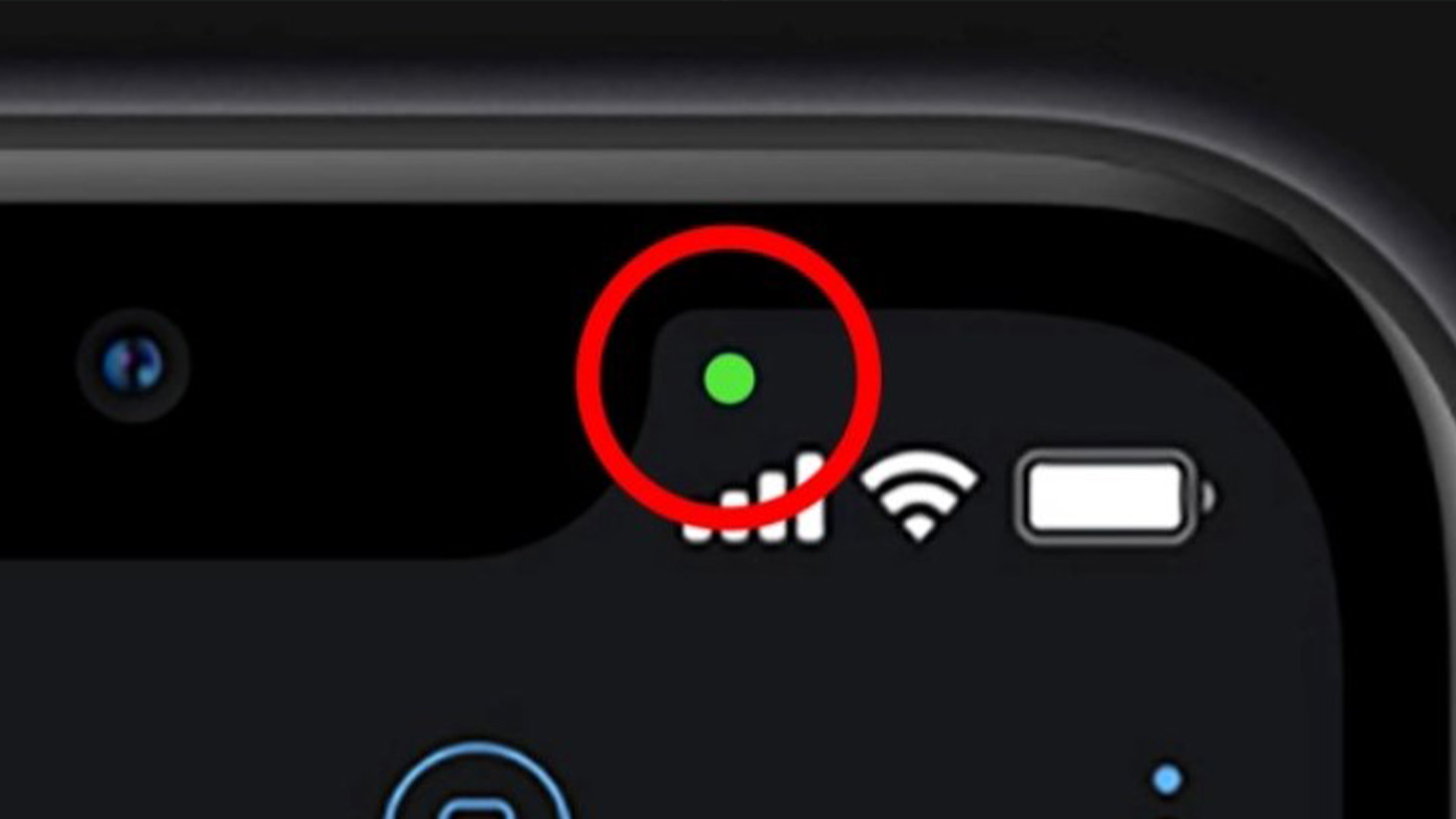
If you’ve ever noticed a small green dot in the top-right corner of your Android phone’s status bar, you might have wondered what it signifies. This privacy indicator appears when certain apps access your camera or microphone, ensuring you’re always aware of which applications are using these sensors. But can you turn it off? Here’s everything you need to know.
The Green Dot: A Privacy Feature in Android
First introduced in Android 12, the green dot serves as a real-time privacy alert. Whenever an app on your Android phone accesses your camera or microphone, the green indicator appears to inform you. This feature enhances security by preventing unauthorized access to your device’s sensors without your knowledge.
For instance, if you open your camera app, Instagram, Snapchat, or any app that requires microphone access, you’ll see the green dot appear. As soon as you close these apps, the dot disappears. If you ever notice the green dot when you’re not actively using such an app, it might be a sign that an application is accessing your camera or microphone in the background.
How to Check Which Apps Are Using Your Camera or Microphone
If you see the green dot and want to find out which app is responsible, follow these steps:
- Swipe down from the top of the screen to open your notification shade.
- The green dot will expand to display a camera or microphone icon.
- Tap the icon to reveal the app currently using your camera or mic.
- If needed, tap on the app name to adjust or revoke its permissions.
This quick access tool ensures you stay in control of your privacy, allowing you to disable camera or microphone access for any suspicious apps.
Can You Disable the Green Dot on Android?
Unfortunately, there’s no built-in option to turn off the green dot indicator. The only way to prevent it from appearing is to revoke camera and microphone access for all apps. However, doing so means you won’t be able to use essential features in apps like Instagram, Snapchat, or even make voice and video calls.
If you still want to disable all camera and mic access, follow these steps:
- Swipe down twice from the top of the screen to access Quick Settings.
- Scroll through the toggles to find ‘Mic Access’ and ‘Camera Access.’
- Tap each toggle to disable them.
- Confirm any warning prompts that appear.
To restore access, simply repeat the steps and re-enable the toggles.
Final Thoughts
The green dot on your Android phone is a powerful privacy tool that ensures transparency in app permissions. While you can’t disable the indicator without revoking access to essential features, you can always monitor and control which apps use your camera and microphone. Staying aware of this feature helps protect your privacy and keeps your device secure.


