
Microsoft has officially begun rolling out Windows 11 24H2, the much-anticipated 2024 update that introduces significant improvements and new features to the operating system. This update marks the third major version of Windows 11, which originally launched in 2021, and it’s the most extensive upgrade we’ve seen in two years.
If you’re eager to upgrade to Windows 11 24H2, this guide will walk you through the various methods to download and install the update on your device.
What’s New in Windows 11 24H2?
The Windows 11 2024 Update has been available to Insider Program users for testing over the past year. Now, it’s being rolled out to all users globally. This update introduces a slew of performance enhancements, UI tweaks, and security features, making it one of the most anticipated releases for Windows 11 enthusiasts.
Some of the notable updates include:
- Enhanced Taskbar with greater customization options.
- Improved Snap Layouts for easier multitasking.
- New Widgets and App Updates, bringing more personalization options.
- Security Enhancements, including better integration with TPM 2.0 and UEFI Secure Boot.
- New AI-powered Features integrated into the OS for an improved user experience.
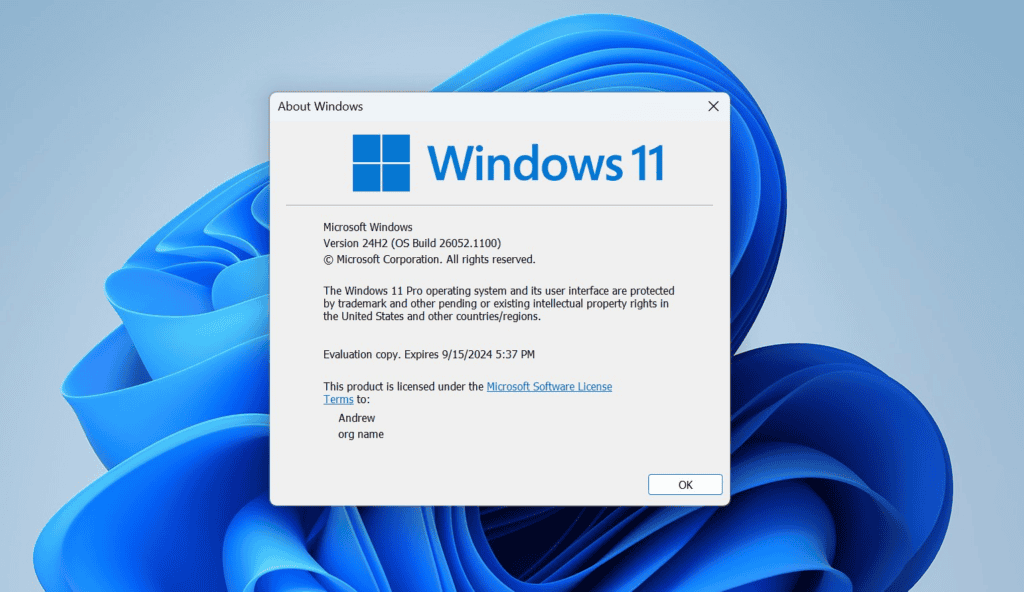
How to Install Windows 11 24H2 Using Windows Update
If you’re looking to update your system the official way, follow these steps:
- Open Windows Update: Press the Win key, type “check for updates,” and hit Enter.
- Enable Latest Updates: Ensure that the toggle for “Get the latest updates as soon as they’re available” is active.
- Check for Updates: After enabling, recheck for available updates.
- Download & Install: If Windows 11 24H2 is ready for your device, click on the Download & Install button. Once the download completes, restart your device when prompted to finish the installation.
Staged Rollout: Why You Might Not See the Update Yet
Microsoft is using a “staged rollout” process for this update, meaning it might not be available in all regions or on every device right away. This is done to ensure a smooth and stable transition for all users. If you don’t see the update immediately, don’t worry—it’s on the way.
How to Install Windows 11 24H2 Using ISO Files
For those who can’t wait for the update to appear in Windows Update, Microsoft has also made ISO files available for manual installation. Here’s how to install the update using an ISO:
- Download the ISO: Visit the official Microsoft website and download the Windows 11 24H2 ISO file.
- Run the Installer: Locate the ISO file on your PC and run the
setup.exefile. - Follow the Instructions: The installer will guide you through the rest of the update process. Make sure to back up important files before starting.
System Requirements for Windows 11 24H2
The hardware requirements for Windows 11 24H2 remain largely the same, but there are a few updates. You’ll need:
- 1GHz Dual-Core Processor
- 4GB of RAM
- 64GB of storage
- UEFI, Secure Boot, and TPM 2.0 support
- Support for SSE4.2 instruction set and POPCNT (most modern processors already support these).
Why You Should Update to Windows 11 24H2
Beyond new features and performance enhancements, updating to Windows 11 24H2 ensures that your device stays secure with the latest security patches. Microsoft has focused on improving the stability of the OS with this release, reducing bugs and enhancing system-wide responsiveness.
Conclusion
The Windows 11 24H2 update is packed with exciting features and performance improvements, making it a must-have for Windows users. Whether you wait for the automatic rollout or take matters into your own hands with the ISO file, this update will elevate your Windows experience.


